First launch
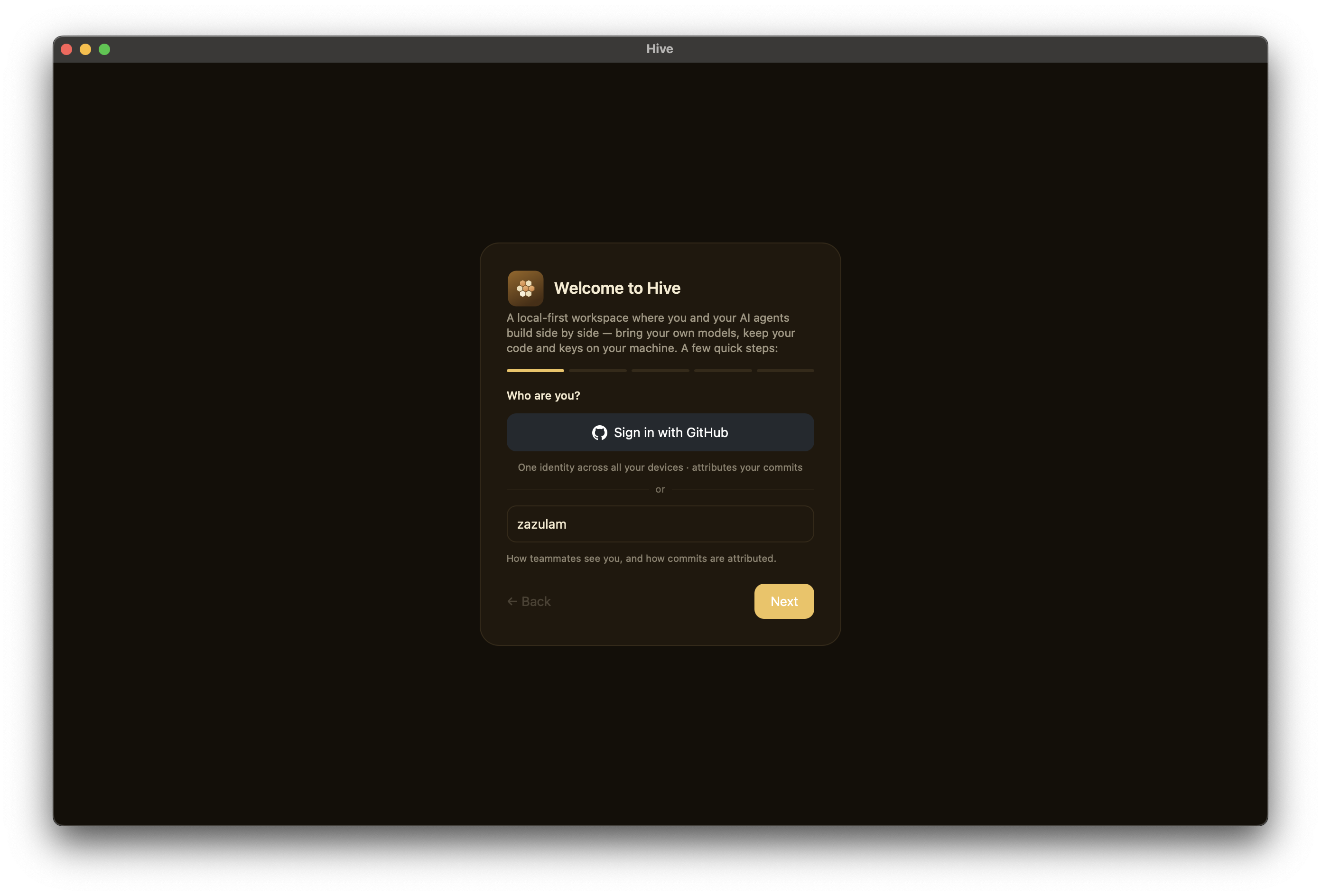
Hive ships as an unsigned desktop app (macOS / Windows / Linux). On first launch you'll see a guided onboarding wizard that captures your identity, picks a workspace folder, and configures a runtime.
Install
Grab a bundle for your OS, or build from source:
git clone https://github.com/honeyhive-ai/hive.git
cd hive
cargo tauri build        # bundles for the current OS → target/release/bundle/
# or a fast dev loop without bundling:
cargo tauri dev
See Building the dist for per-OS details and cross-builds. Because builds are unsigned, first launch needs a nudge:
- macOS: right-click → Open (or
xattr -dr com.apple.quarantine /Applications/Hive.app). - Windows: SmartScreen → More info → Run anyway.
- Linux:
chmod +x Hive_*.AppImage && ./Hive_*.AppImage.
Wizard steps
The onboarding is five quick steps (the progress dots at the top count them off):
- Identity — enter a display name, or sign in with GitHub (see below) for one identity across all your devices. Either way Hive auto-generates an Ed25519 device key behind the scenes; you never see it directly.
- Project folder — pick a folder on disk. Hive treats this as the root; everything agents do (file edits, command runs, git operations) is scoped to this directory.
- Runtime — choose the agent that generates replies: Claude
Code, an OpenAI-compatible API (OpenAI / OpenRouter / any
local OpenAI-style server), an Anthropic API key, or Ollama
(offered only when a local Ollama daemon is detected). Hive defaults
the selection to whatever it finds installed. A "Let agents edit
files in my project" checkbox sets Claude Code's permission mode —
checked lets agents write files (
acceptEdits), unchecked is read-only. You can add aider, pi, or more runtimes later from Settings. - Team — optional. If you have a relay endpoint, paste it here (and optionally name a team) so cross-network peers can sync. Skip to stay solo/local; you can add a relay later from Settings.
- Appearance — pick a theme (Pollen, Midnight, Studio, Harbor, or Meadow) and light / dark / auto. It applies live as you choose, and you can change it anytime from Settings → Appearance.
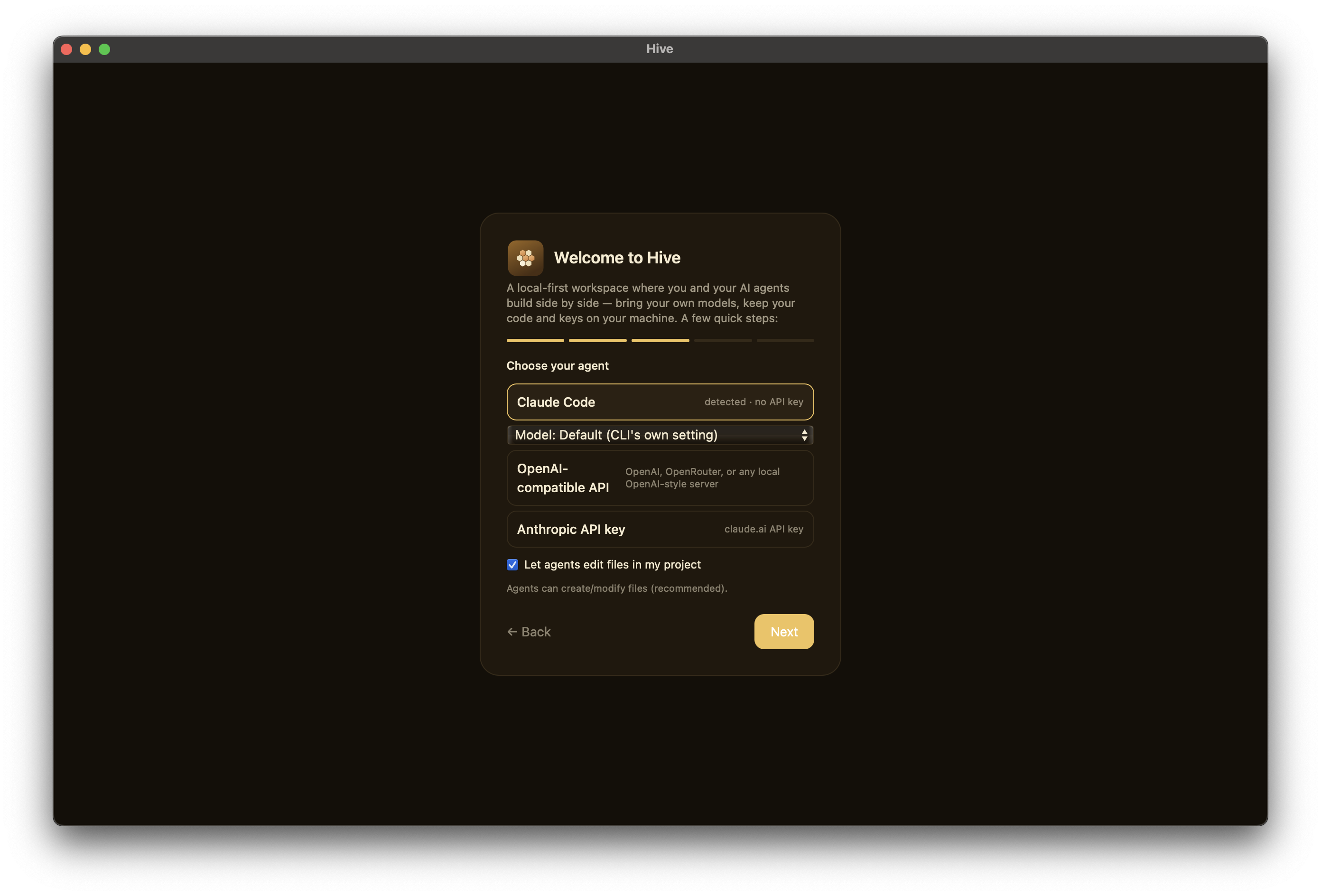
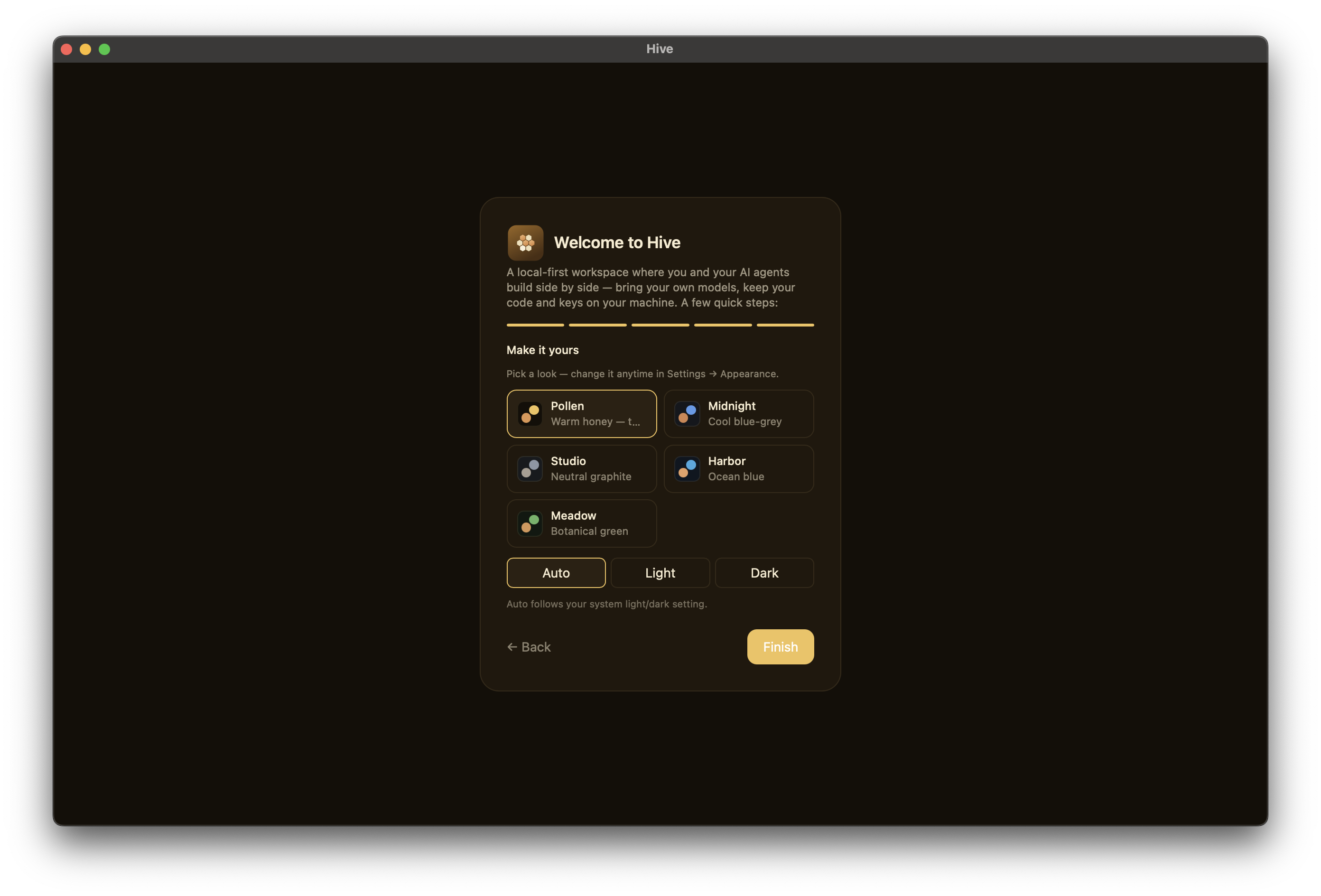
There's no separate Welcome, Permissions, or Finish/Review screen — identity is the first thing you see, and the last step's Finish button saves everything.
What gets written
After onboarding:
- The app data dir
com.hive.desktop/— your account + device records (public bits) as JSON, private key seeds underkeys/, andsettings.json(runtime/provider config, including any API keys you paste into Settings). <workspace>/hive.config.toml— optional file-based runtime + transport config.<workspace>/.hive/— the workspace's event store (signed envelopes) and per-session state.
Everything is local. Nothing leaves your machine unless you explicitly configure a transport (relay endpoint or LAN discovery toggle).
Sign in with GitHub
You can use Hive anonymously with just a local device identity, but signing in with GitHub (during onboarding or later in Settings → Account) gives you:
- One account identity across devices — the same GitHub account on your laptop and desktop resolves to one member, two devices.
- Attributed commits — git commits Hive makes on your behalf are attributed to you.
- Reach teammates by
@handle— invite and add collaborators by their GitHub username.
Sign-in uses GitHub's device flow: Hive shows a short code, you enter it on github.com, and approve. Official builds ship with the OAuth App client id baked in; if you build a fork yourself, paste your own OAuth App client id in the sign-in panel.
See Identity & devices and Collaborators, presence & DMs.
Reset local data
To start completely over on a device, use Settings → Account → Danger zone → "Reset local data". It wipes this device's chats, identity, keys, settings, and workspaces, then relaunches Hive fresh.
This is the supported way to start over — uninstalling the app leaves your data behind on disk. If you ever need to clean up manually, Hive's data directory is:
| OS | Path |
|---|---|
| macOS | ~/Library/Application Support/com.hive.desktop |
| Windows | %APPDATA%\com.hive.desktop (plus %LOCALAPPDATA%\com.hive.desktop for the WebView2 cache) |
| Linux | ~/.local/share/com.hive.desktop |
Reset is irreversible
Reset local data cannot be undone. Anything not synced to a peer or pushed to git is gone. Back up your workspace folder first if in doubt.